









GetGenie helps you create posts for Google Business Profile (GBP). These local-SEO focused posts will improve your chances of attracting nearby customers with ease.
How to Create Optimized GBP Posts? #
GetGenie is both a WordPress plugin and SaaS tool. So users can find, install, activate, and start using this AI content creation and SEO tool via:
- WordPress Dashboard
- Downloading from WordPress.org
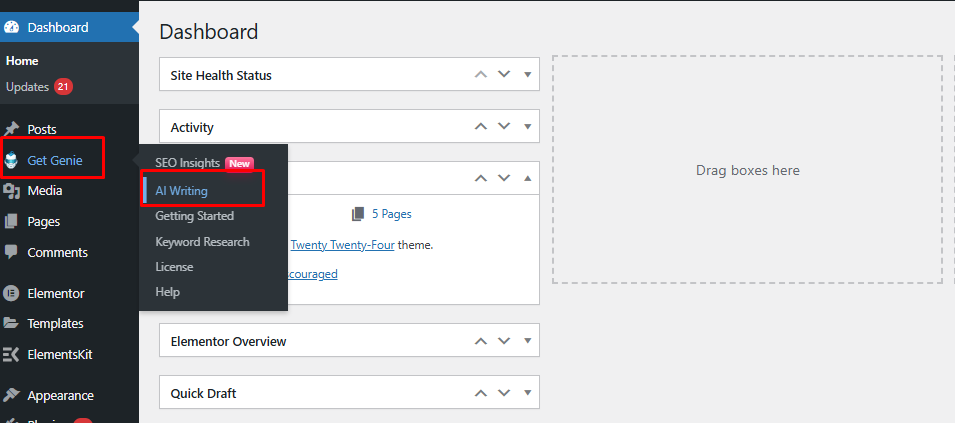
Once you have GetGenie installed and activated, you’ll find GBP Post Generator template via WordPress > Dashboard > GetGenie > AI Writing > GBP Post Generator from the left of your screen.
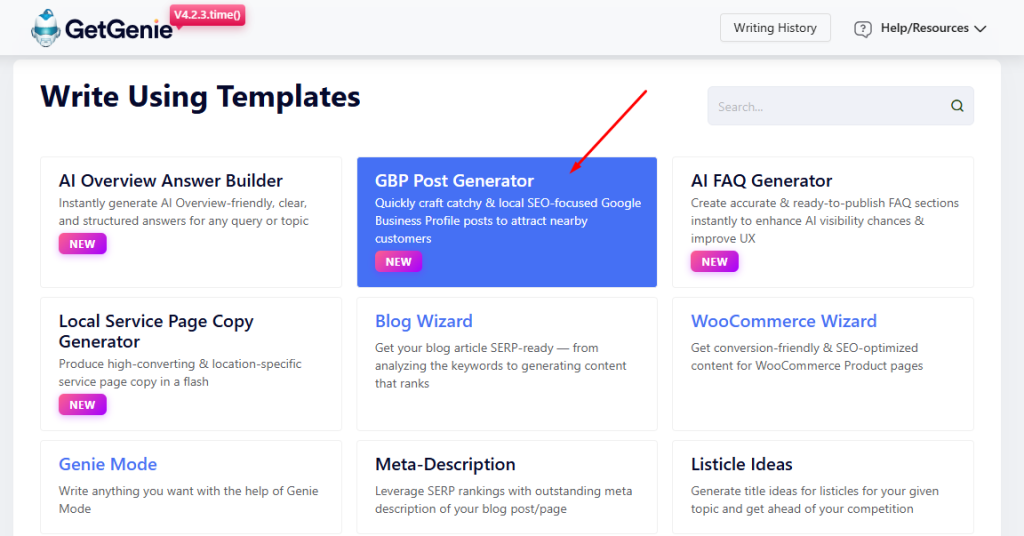
When you enter AI writing window, you’ll see a list of templates. From there, pick GBP Post Generator.
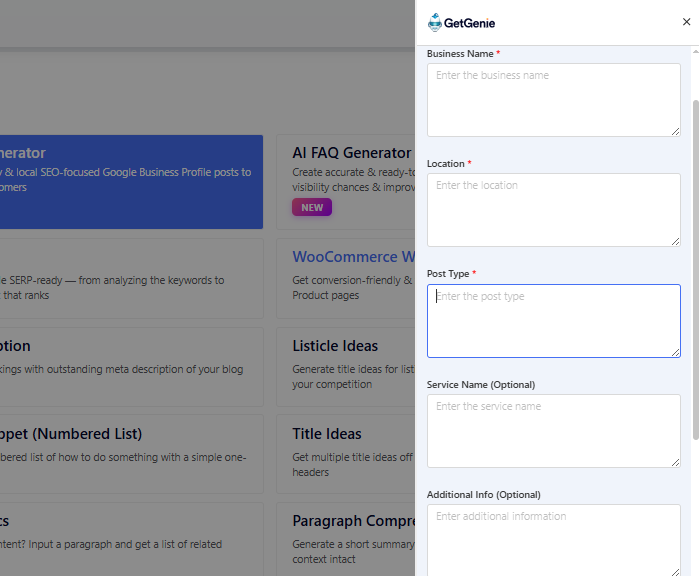
The template will slide in from the right. And you will the notice input fields:
- Business Name,
- Location Post Type,
- Service Name (Optional),
- Additional Info (Optional)
- Number Of Questions,
- Language,
- Tone,
- Creativity,
- and Max Results.
And the action button Write, that will generate the outputs once all the input field and options are responded to.
Following are the steps to generate GBP Posts using GetGenie.
Step 1: Adding the Business Name & Location #
Here, user enters their business name that they want their audience to find on Google SERP. With that, you will also enter the location of your business or company. The more details, the better.

Step 2: Entering the Post Type #
Next up, you’ll need to type-in the the post type for more accuracy. For example, it could a discount offer, new feature update, a milestone, etc. post.

Step 3: Including the Additional Details #
As you scroll down the template, you will notice the Service Name or type of service your business provides. This will help curtail the output specially for your firm.
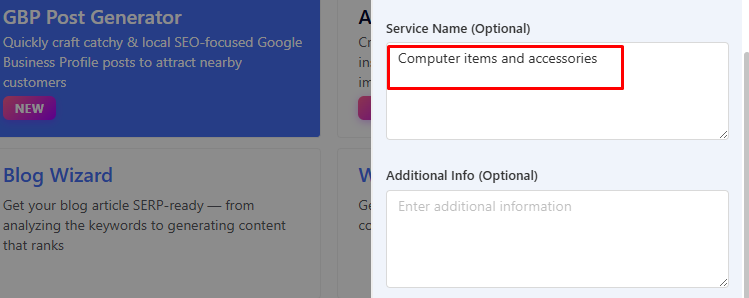
Below the field, you can add more details and company info that will add more context to your post. However, as its optional, we are skipping it now.
Step 4: Selecting Options for Best Output #
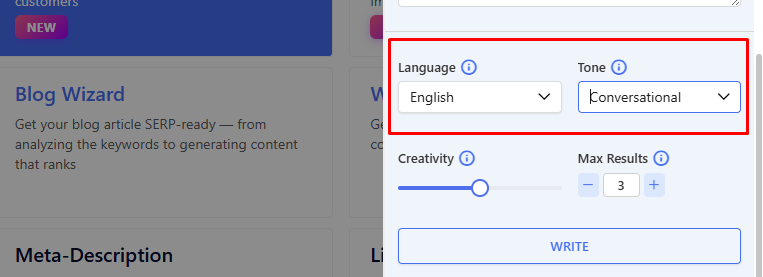
Once you have the business-related details entered, now it’s time to choose the number of Language, Tone, Creativity Level, and number of Results.
You can choose from any of the 33 languages integrated in GetGenie. And select a tone of voice as well. Currently, the tool offers 10 options, included in the dropdown with the option.
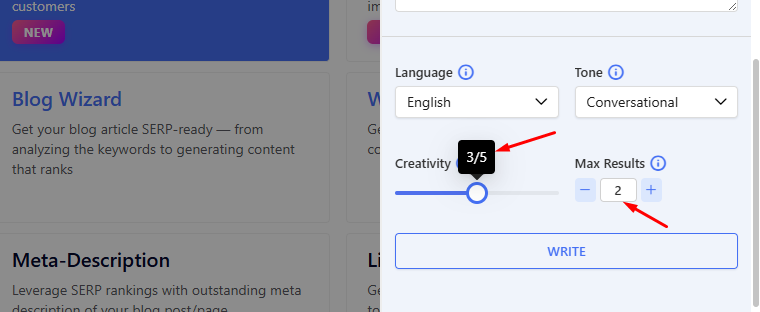
Before clicking Write to generate the answers, you can set the output creativity from 1 to 5. And the number of results anything between 1 to 6.
Step 5: Generated Output #
Finally, once all is selected and entered, press Write and you will see your desired results. Here, you’ll see two results, drafted in conversational English language with creativity level of 3, as we opted for above.
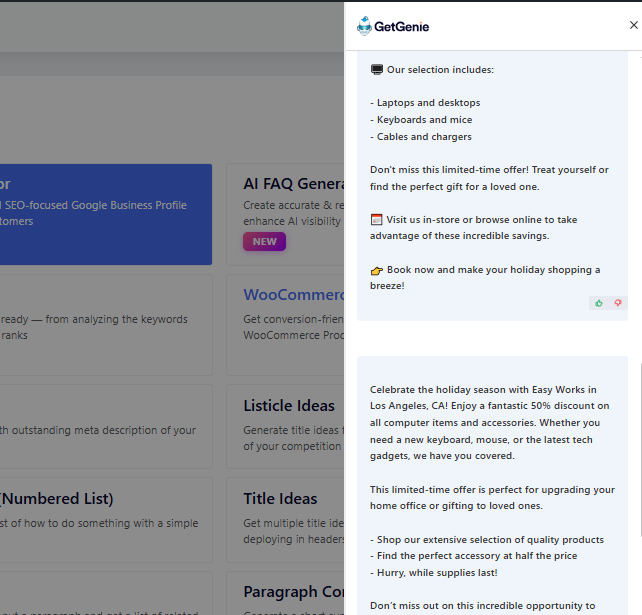
Select any one of the GBP post outputs and use it as per your needs.
Try GetGenie today to use this powerful template for both SEO and AI visibility enhancement!


 Danish
  Swedish
  Polish